Filter patient lists
While viewing any patient list, use Columns, Filters and the filter controls to change what displays in the table and how the table is ordered. You can add or remove columns, reorder columns, change the current filter selection and apply different filter criteria to narrow the list.
From the toolbar, click Patients.
To change a current filter, click the filter at the top of the list, change the selection and click Apply.
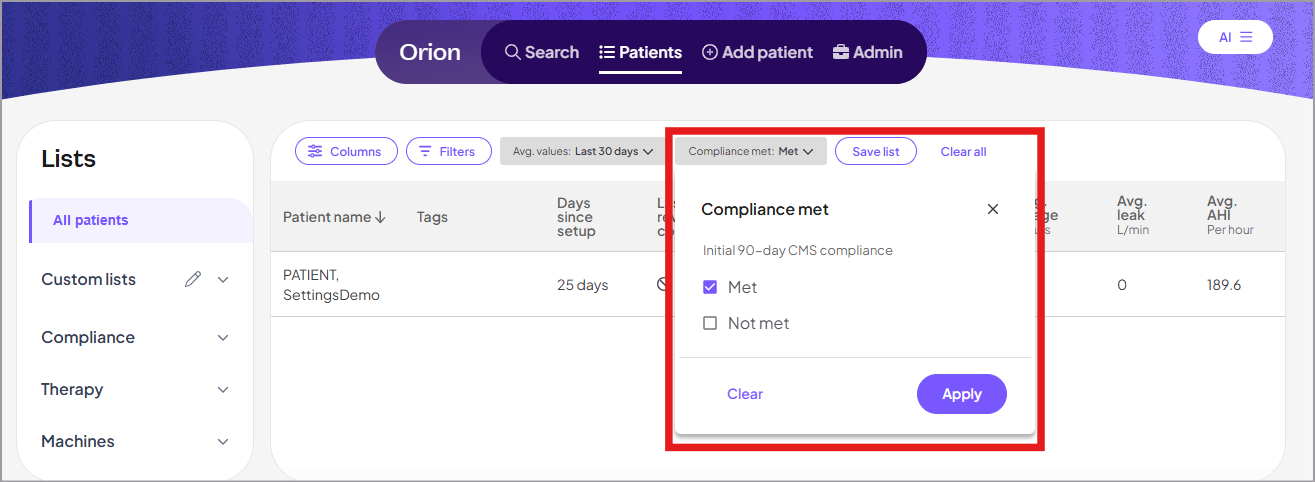
To change the columns displayed or the sort order:
Click Columns.
Click Sort by and select the column to sort the list by, then click Apply.
Select the columns to show. For descriptions of the column types, see Manage patient lists.
If you need averaged metrics, from the Time range list, select the number of days of data to average.
To reorder columns, click and drag them.
Click Apply.
To filter the patients shown in the list:
Click Filters.
Choose the filter categories you need. For descriptions of the filter types, see Manage patient lists.
Set the specific filter values and click Apply.
Click Apply.
To save the current view as a custom list, click Save list above the table.
To return to the initial list, click Clear all.