Record patient outreach
Use Mark as to document patient communication. You can record the type of outreach, add notes, schedule follow-ups and send supportive content.
Search for and open the patient record.
Click Mark as in the top right corner.
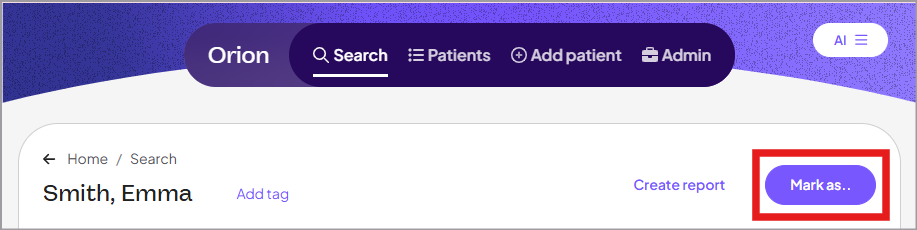
Select one of the following options:
Called
Left voicemail
Emailed
Reviewed
If you select:
Called, Emailed or Reviewed: Select the reason for the outreach.
Left voicemail: Enter any notes about the voicemail you left.
(Optional) Select the Follow up in check box, then enter the number of days to follow up with the patient.
When selected, the number of days until follow-up displays in Patient lists in the Days until follow-up column.
(Optional) To send preconfigured supportive content to the patient:
Select the Send by email and/or the Send by SMS/Text check box.
From the Content template list, select the type of supportive content you want to send.
Encouragement — low usage: Motivate patients with low therapy usage by offering encouragement and tips to support CMS compliance.
Schedule physician appointment: Remind patients to book an in-person appointment when a physical evaluation is needed or it's time for a routine check-up.
On track — celebratory: Congratulate patients who consistently meet therapy goals to reinforce positive progress.
Click Preview email or Preview SMS to view the content before sending it to the patient.
The Email and Phone fields are auto-populated with the email and phone in the patient record. If needed, you can change the email or phone number.
Click Save and send.